Published on March 24, 2026
By Deeplodoc Team
How to Auto-Save Gmail Invoices to Google Drive in 2026
Learn the best methods to automatically save invoices from Gmail to Google Drive. Compare Google Apps Script, Zapier, and AI-powered extraction tools.
If you run a business or manage finances, you know the monthly drill: digging through your inbox, searching for vendor emails, and manually downloading PDFs to organize them for your accountant.
The pain of manual downloading isn't just about the wasted time—it's about the forgotten files, the broken focus, and the end-of-month scramble when a crucial receipt is missing. A missing invoice isn't just an annoyance; it's a direct hit to your VAT return and a potential compliance risk during an audit.
You need a reliable way to download receipts from email automatically and route them directly to your cloud storage. But not all automation is created equal.
In this guide, we will break down three ways to save attachments from Gmail to Google Drive automatically, analyzing the technical depth, edge cases, and hidden costs of each method: Google Apps Script, Zapier/Make, and purpose-built AI solutions.
Method 1: Google Apps Script (Free, but High Maintenance)
If you are technically inclined and want a free solution, you can write a Gmail Google Drive script using Google Apps Script. This method runs directly within your Google Workspace environment, utilizing Google's native APIs to bridge Gmail and Drive.
How it works
You open Google Apps Script, create a new project, and write a function that queries your inbox, iterates through threads, extracts attachments, and saves them to a specific Drive folder.
To make it somewhat reliable, you need to filter by MIME type (e.g., application/pdf) and use a time-driven trigger (cron job) to run the script daily. Here is a more robust example of what the code looks like:
function saveInvoicesToDrive() {
  // Replace with your specific Google Drive Folder ID
  var folder = DriveApp.getFolderById("YOUR_FOLDER_ID");

  // Search for unread emails with attachments from the last 24 hours
  var threads = GmailApp.search("is:unread has:attachment (subject:invoice OR subject:receipt) newer_than:1d");

  for (var i = 0; i < threads.length; i++) {
    var messages = threads[i].getMessages();
    for (var j = 0; j < messages.length; j++) {
      var attachments = messages[j].getAttachments();

      for (var k = 0; k < attachments.length; k++) {
        var attachment = attachments[k];

        // Basic filter: Only save PDF files to avoid email signature images
        if (attachment.getContentType() === "application/pdf") {
          folder.createFile(attachment);
        }
      }
    }
    // Mark thread as read so it isn't processed again tomorrow
    threads[i].markRead();
  }
}
The Edge Cases & Downsides
While free, this method requires constant babysitting:
- The Signature Image Problem: Even with the
application/pdffilter, some vendors send invoices as.jpgor.pngfiles. If you allow image files in your script, it will download every single Facebook, Twitter, and LinkedIn logo from the vendor's email signature. Your Drive folder will become a graveyard of 2KB image files. - No Metadata Extraction: The script just dumps files into a folder with their original names (e.g.,
INV-2026-final_v3(1).pdf). Your accountant still has to open every single file to figure out the vendor name, date, and amount. - Execution Limits: Google Apps Script has a 6-minute execution limit. If you receive a massive batch of emails, the script will time out and fail silently, leaving you with missing documents.
Method 2: Zapier, Make, or n8n (Flexible, but Expensive to Scale)
If you don't want to write code, iPaaS (Integration Platform as a Service) tools like Zapier, Make (formerly Integromat), or n8n are the standard choices for gmail automation.
How it works
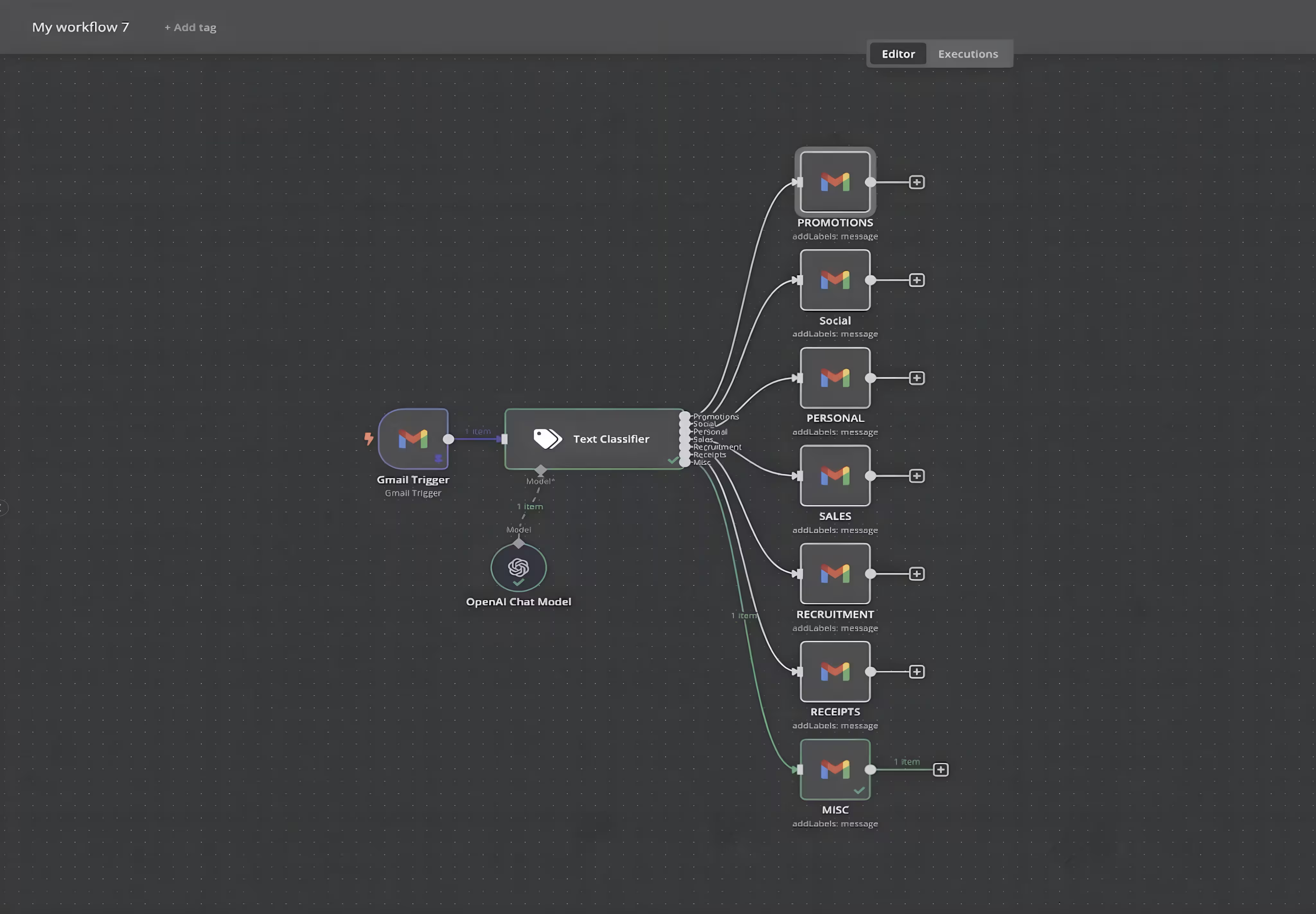
You create a workflow (a "Zap" or "Scenario") with a trigger and an action.
- Trigger:
New Email Matching Searchin Gmail. You use a query likehas:attachment (invoice OR receipt OR bill). - Filter: You add a step to check if the attachment extension contains
.pdf. - Looping (Crucial Step): Because an email might have multiple attachments, you must use a "Looping" module to iterate through each file.
- Action:
Upload Filein Google Drive.
The Edge Cases & Downsides
While these tools offer visual builders, they are generic data pipelines, not financial tools:
- The "Task" Cost Explosion: Zapier charges per task. If you receive an email with 1 invoice and 3 signature images, Zapier triggers the workflow. The loop runs 4 times. Even if the filter blocks the 3 images, you are still charged for the trigger, the filter checks, and the successful upload. A single email can consume 5-10 tasks. If you process 100 invoices a month, you will quickly burn through your task limits and be forced onto a $50-$100/month premium tier.
- Inline Invoices: Not all vendors attach PDFs. Many SaaS companies (like Apple or Google Workspace) send "inline invoices" where the receipt is just HTML text in the body of the email. Zapier cannot easily convert a beautifully formatted HTML email body into a clean PDF receipt without routing it through a third-party HTML-to-PDF API, adding another layer of cost and complexity.
- Complex Routing: If you want to put Stripe invoices in a "Software" folder and Upwork invoices in a "Contractors" folder, you have to build complex conditional paths that are a nightmare to maintain.
Method 3: Specialized AI Solutions (The Deeplodoc Way)
If your goal is to completely automate your accounts payable without writing code, wrestling with Zapier filters, or paying for wasted tasks, you need a purpose-built solution.
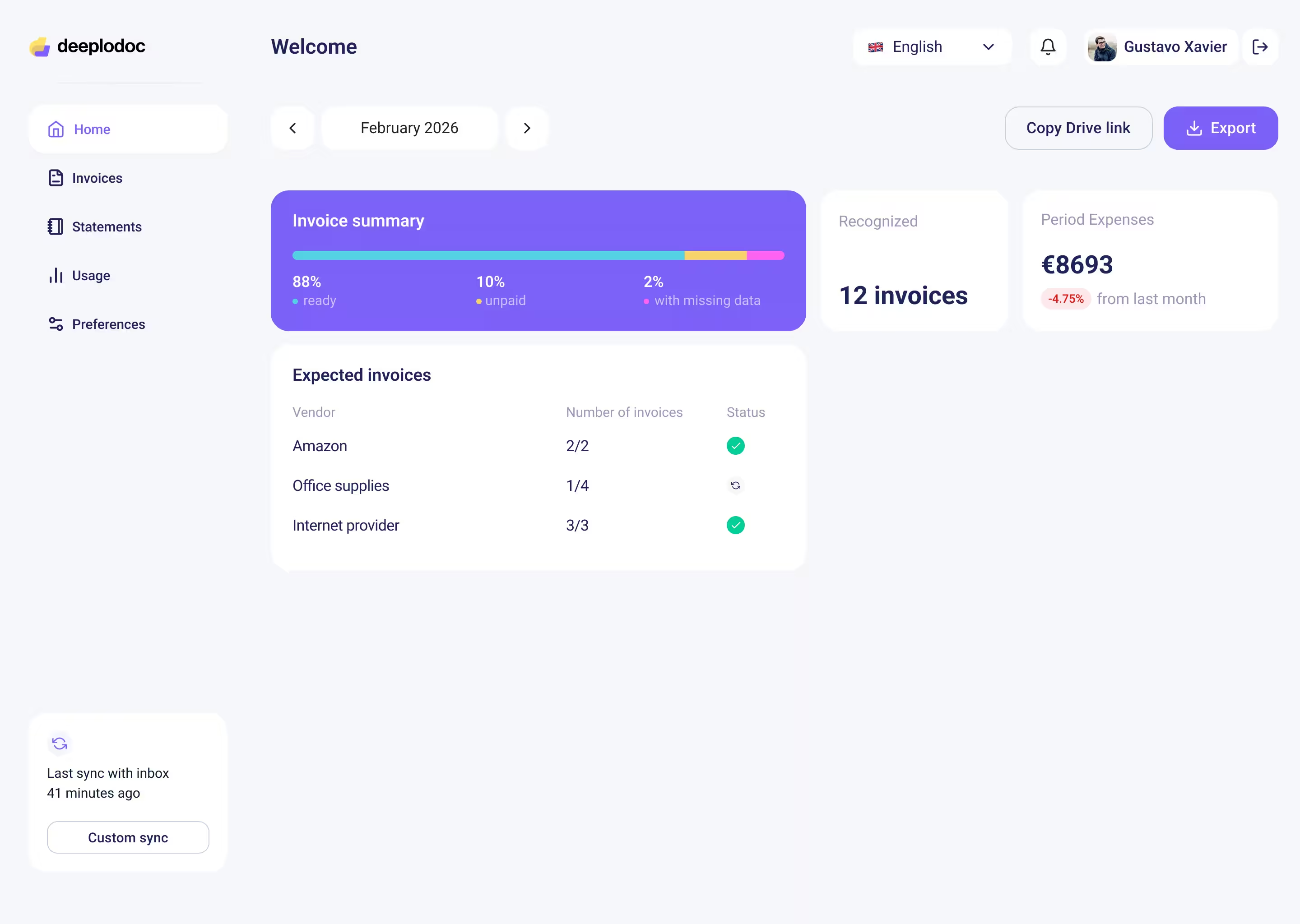
Instead of treating an invoice as a generic "file attachment," specialized AI tools like Deeplodoc treat it as a financial data object. It uses Large Language Models (LLMs) and computer vision to understand the context of the document.
How it works under the hood
- Direct Inbox Monitoring: You connect your Gmail and Google Drive to Deeplodoc via secure OAuth. It quietly monitors your inbox without marking emails as read or disrupting your workflow.
- Semantic Recognition: When an email arrives, Deeplodoc doesn't just look for
.pdf. Its AI analyzes the content. It knows the difference between a promotional newsletter with a PDF brochure attached and a legitimate vendor invoice. It automatically ignores email signature logos. - Inline HTML Conversion: If a vendor sends the receipt in the body of the email (no attachment), Deeplodoc automatically captures the email body, formats it, and generates a clean PDF receipt for you.
- Intelligent Data Extraction & Renaming: This is the game-changer. Deeplodoc reads the document and extracts the Vendor Name, Issue Date, and Gross Amount. It then automatically renames the file to a standardized format (e.g.,
2026-03-24_Stripe_100.00.pdf) before saving it to Drive. - Structured Organization: It automatically creates folders by month and year in your Google Drive, saving both the perfectly named PDF and a structured data file for your accountant.
Why it wins
You get an enterprise-grade financial workflow with zero configuration. You don't pay per "Zapier task," you don't have to write regex filters to block .png files, and your accountant gets perfectly named, organized folders ready for reconciliation.
Conclusion
Manually downloading invoices is a massive drain on your operational efficiency.
While a Gmail Google Drive script is a fun technical project for a developer, it lacks the reliability needed for financial compliance. Zapier offers broad automation, but its generic nature makes it expensive and fragile when dealing with the messy reality of vendor billing and varying attachment formats.
If you want to dive deeper into building a flawless financial workflow, check out our Complete Guide to Invoice Automation.
But if you are ready to solve the problem right now, skip the complex setups and let AI do the heavy lifting.